> ## Documentation Index
> Fetch the complete documentation index at: https://mintlify.com/AlexsJones/llmfit/llms.txt
> Use this file to discover all available pages before exploring further.
# Quickstart
> Get from installation to first successful run in under a minute
This guide walks you through installing llmfit, launching the TUI, and finding your first compatible model.
## Install llmfit
Install llmfit using your preferred package manager:
```bash macOS (Homebrew) theme={null}
brew install llmfit
```
```bash Windows (Scoop) theme={null}
scoop install llmfit
```
```bash Linux (curl script) theme={null}
curl -fsSL https://llmfit.axjns.dev/install.sh | sh
```
```bash From source theme={null}
git clone https://github.com/AlexsJones/llmfit.git
cd llmfit
cargo build --release
# Binary is at target/release/llmfit
```
See the [Installation guide](/installation) for detailed instructions, system requirements, and troubleshooting.
## Launch the TUI
Run llmfit with no arguments to launch the interactive terminal UI:
```bash theme={null}
llmfit
```
The TUI displays:
* **System bar** (top): Your hardware specs (RAM, CPU cores, GPU name, VRAM, backend)
* **Search/filter bar** (below system): Active search query and filters
* **Model table** (center): Scrollable list of models ranked by composite score
* **Status bar** (bottom): Available keyboard shortcuts
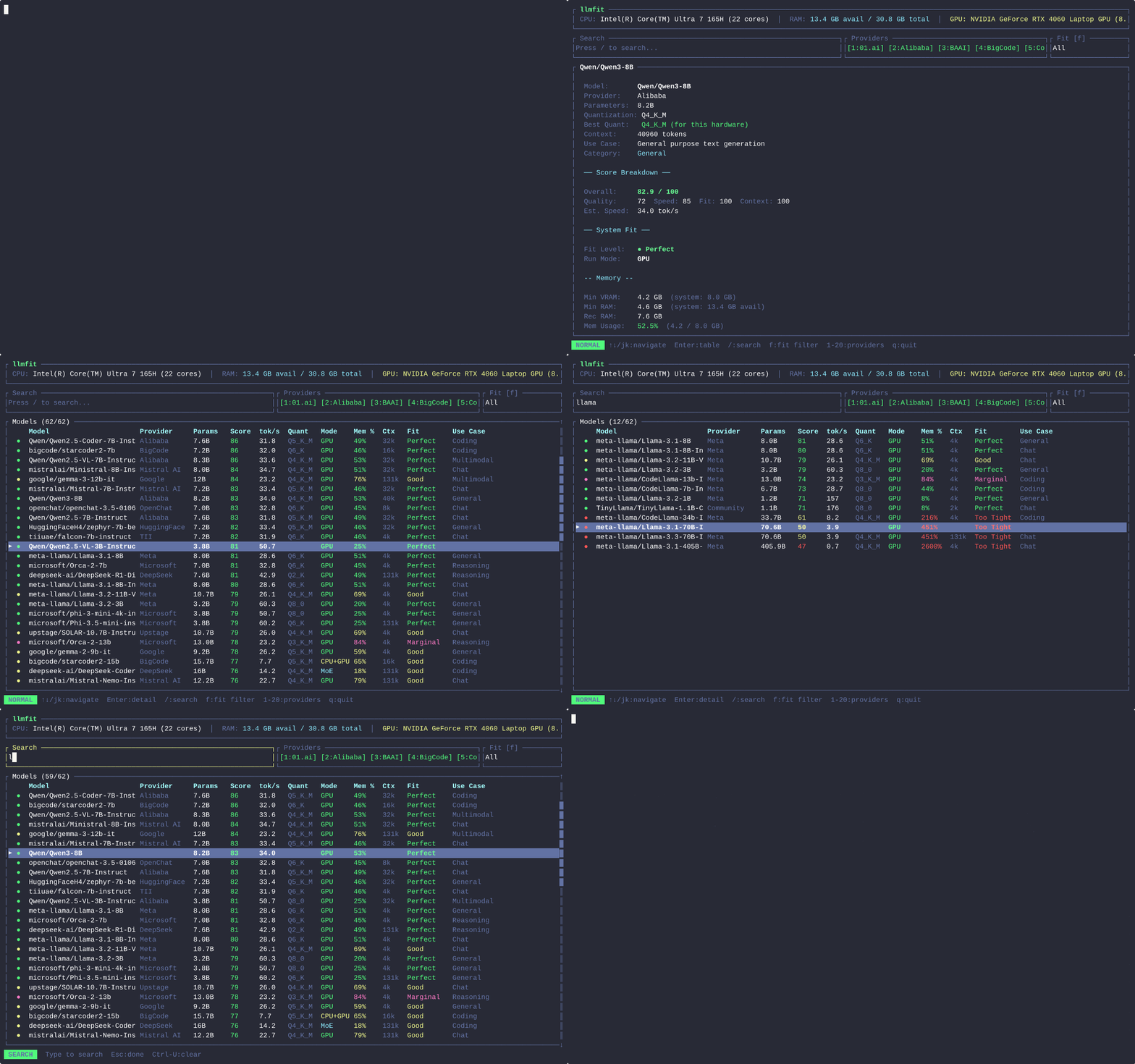 Each model row shows:
* **Score**: Composite score (0-100) balancing quality, speed, fit, and context
* **TPS**: Estimated tokens per second for your hardware
* **Quant**: Best quantization selected for your available memory (Q8\_0 to Q2\_K)
* **Mode**: Run mode (GPU, CPU+GPU, CPU, MoE with expert offloading)
* **Mem%**: Memory usage as percentage of available VRAM/RAM
* **Context**: Maximum context length (e.g., 32k, 128k)
* **Use Case**: Model category (General, Coding, Chat, Reasoning, Multimodal, Embedding)
* **Inst**: Green ✓ if installed via Ollama, llama.cpp, or MLX
## Navigate models
Use keyboard shortcuts to explore the model list:
### Basic navigation
| Key | Action |
| -------------------------- | ------------------------------------- |
| `Up` / `Down` or `j` / `k` | Move selection up/down one row |
| `PgUp` / `PgDn` | Scroll by 10 rows |
| `g` / `G` | Jump to top / bottom of list |
| `Enter` | Toggle detail view for selected model |
| `q` | Quit llmfit |
### Search and filter
| Key | Action |
| ---------------- | --------------------------------------------------------------------- |
| `/` | Enter search mode (partial match on name, provider, params, use case) |
| `Esc` or `Enter` | Exit search mode |
| `Ctrl-U` | Clear search query |
| `f` | Cycle fit filter: All → Runnable → Perfect → Good → Marginal |
| `a` | Cycle availability filter: All → GGUF Avail → Installed |
| `s` | Cycle sort column: Score → Params → Mem% → Ctx → Date → Use Case |
| `P` | Open provider filter popup (select specific providers) |
| `1`-`9` | Toggle provider visibility (quick filter) |
### Try it: Find coding models
1. Press `/` to enter search mode
2. Type `coding` to filter by use case
3. Press `Enter` to exit search
4. Press `f` to filter by fit level (e.g., "Runnable" to see only models that fit)
## View model details
Press `Enter` on any model to see detailed information:
```
╔══════════════════════════════════════════════════════════════╗
║ Qwen/Qwen2.5-Coder-7B-Instruct ║
╠══════════════════════════════════════════════════════════════╣
║ Provider: Alibaba ║
║ Parameters: 7.6B ║
║ Context: 32k tokens ║
║ Use Case: Code generation and completion ║
║ ║
║ Memory Analysis: ║
║ Quantization: Q4_K_M (4-bit) ║
║ Model size: 4.3 GB ║
║ VRAM usage: 4.7 GB (19% of 24 GB) ║
║ KV cache: 0.4 GB ║
║ Run mode: GPU ║
║ ║
║ Performance: ║
║ Estimated speed: 87 tokens/sec ║
║ Backend: CUDA ║
║ ║
║ Fit Analysis: ║
║ Fit level: Perfect ║
║ Score breakdown: ║
║ Quality: 92/100 ║
║ Speed: 88/100 ║
║ Fit: 95/100 ║
║ Context: 85/100 ║
║ Composite: 91.5/100 ║
╚══════════════════════════════════════════════════════════════╝
```
Press `Esc` or `Enter` again to return to the model list.
## Download a model
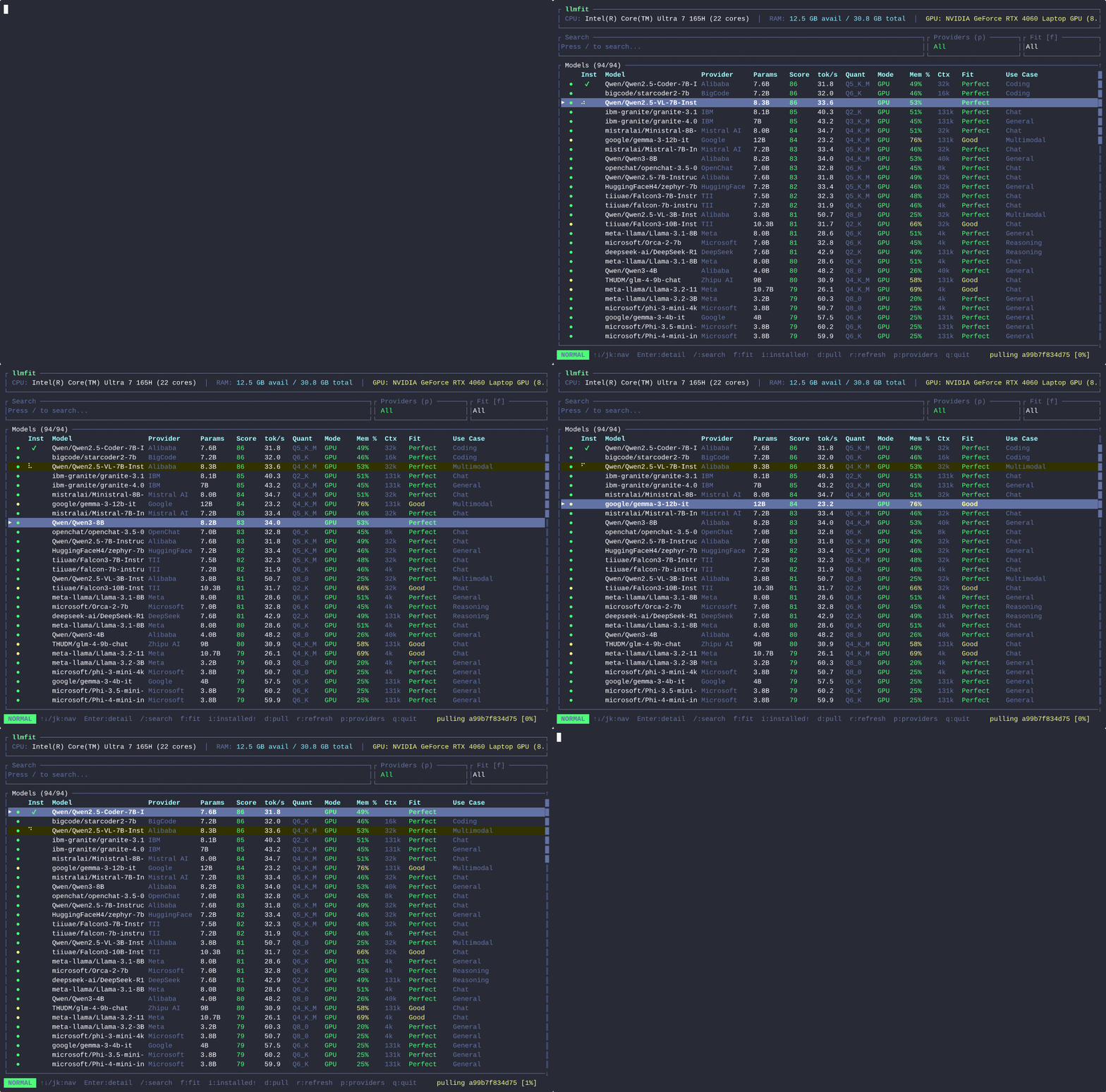
If you have Ollama, llama.cpp, or MLX installed, you can download models directly from the TUI:
1. Navigate to a model with `j`/`k` or arrow keys
2. Press `d` to download
3. If multiple providers are available, select one from the picker
4. Watch the progress indicator as the model downloads
Each model row shows:
* **Score**: Composite score (0-100) balancing quality, speed, fit, and context
* **TPS**: Estimated tokens per second for your hardware
* **Quant**: Best quantization selected for your available memory (Q8\_0 to Q2\_K)
* **Mode**: Run mode (GPU, CPU+GPU, CPU, MoE with expert offloading)
* **Mem%**: Memory usage as percentage of available VRAM/RAM
* **Context**: Maximum context length (e.g., 32k, 128k)
* **Use Case**: Model category (General, Coding, Chat, Reasoning, Multimodal, Embedding)
* **Inst**: Green ✓ if installed via Ollama, llama.cpp, or MLX
## Navigate models
Use keyboard shortcuts to explore the model list:
### Basic navigation
| Key | Action |
| -------------------------- | ------------------------------------- |
| `Up` / `Down` or `j` / `k` | Move selection up/down one row |
| `PgUp` / `PgDn` | Scroll by 10 rows |
| `g` / `G` | Jump to top / bottom of list |
| `Enter` | Toggle detail view for selected model |
| `q` | Quit llmfit |
### Search and filter
| Key | Action |
| ---------------- | --------------------------------------------------------------------- |
| `/` | Enter search mode (partial match on name, provider, params, use case) |
| `Esc` or `Enter` | Exit search mode |
| `Ctrl-U` | Clear search query |
| `f` | Cycle fit filter: All → Runnable → Perfect → Good → Marginal |
| `a` | Cycle availability filter: All → GGUF Avail → Installed |
| `s` | Cycle sort column: Score → Params → Mem% → Ctx → Date → Use Case |
| `P` | Open provider filter popup (select specific providers) |
| `1`-`9` | Toggle provider visibility (quick filter) |
### Try it: Find coding models
1. Press `/` to enter search mode
2. Type `coding` to filter by use case
3. Press `Enter` to exit search
4. Press `f` to filter by fit level (e.g., "Runnable" to see only models that fit)
## View model details
Press `Enter` on any model to see detailed information:
```
╔══════════════════════════════════════════════════════════════╗
║ Qwen/Qwen2.5-Coder-7B-Instruct ║
╠══════════════════════════════════════════════════════════════╣
║ Provider: Alibaba ║
║ Parameters: 7.6B ║
║ Context: 32k tokens ║
║ Use Case: Code generation and completion ║
║ ║
║ Memory Analysis: ║
║ Quantization: Q4_K_M (4-bit) ║
║ Model size: 4.3 GB ║
║ VRAM usage: 4.7 GB (19% of 24 GB) ║
║ KV cache: 0.4 GB ║
║ Run mode: GPU ║
║ ║
║ Performance: ║
║ Estimated speed: 87 tokens/sec ║
║ Backend: CUDA ║
║ ║
║ Fit Analysis: ║
║ Fit level: Perfect ║
║ Score breakdown: ║
║ Quality: 92/100 ║
║ Speed: 88/100 ║
║ Fit: 95/100 ║
║ Context: 85/100 ║
║ Composite: 91.5/100 ║
╚══════════════════════════════════════════════════════════════╝
```
Press `Esc` or `Enter` again to return to the model list.
## Download a model
If you have Ollama, llama.cpp, or MLX installed, you can download models directly from the TUI:
1. Navigate to a model with `j`/`k` or arrow keys
2. Press `d` to download
3. If multiple providers are available, select one from the picker
4. Watch the progress indicator as the model downloads
 **Ollama users**: Make sure `ollama serve` is running. llmfit connects to `http://localhost:11434` by default. Use `OLLAMA_HOST` to connect to a remote instance.
### Refresh installed models
Press `r` to refresh the installed model list from all detected runtime providers.
## Use Plan mode
Plan mode inverts the normal flow: instead of "what fits my hardware?", it answers "what hardware does this model need?".
To enter Plan mode:
1. Select a model with `j`/`k`
2. Press `p` to open Plan mode
3. Edit fields with `Tab`, `j`, `k`, and type to change values:
* **Context**: Target context length (e.g., 8192, 32768)
* **Quant**: Quantization level (Q8\_0, Q6\_K, Q5\_K\_M, Q4\_K\_M, Q3\_K\_M, Q2\_K)
* **Target TPS**: Desired tokens per second
4. View hardware requirements:
* Minimum and recommended VRAM/RAM/CPU cores
* Feasible run paths (GPU, CPU offload, CPU-only)
* Upgrade deltas to reach better fit targets
```
╔═══════════════════════════════════════════════════════════════╗
║ Hardware Planning: Qwen/Qwen2.5-Coder-14B-Instruct ║
╠═══════════════════════════════════════════════════════════════╣
║ Configuration: ║
║ Context Length: [8192___] ║
║ Quantization: [Q4_K_M_] ║
║ Target TPS: [50_____] ║
║ ║
║ Minimum Requirements: ║
║ VRAM: 8.2 GB ║
║ RAM: 16 GB (if using CPU offload) ║
║ CPU: 8 cores ║
║ ║
║ Recommended (for Target TPS): ║
║ VRAM: 12 GB ║
║ GPU: NVIDIA RTX 3060 or better ║
║ RAM: 24 GB ║
║ ║
║ Current System: ║
║ VRAM: 24 GB ✓ ║
║ RAM: 62 GB ✓ ║
║ CPU: 14 cores ✓ ║
║ ║
║ Feasible Run Paths: ║
║ ✓ GPU (recommended) ║
║ ✓ CPU+GPU offload ║
║ ✓ CPU-only ║
╚═══════════════════════════════════════════════════════════════╝
```
Press `Esc` or `q` to exit Plan mode.
## Change themes
llmfit ships with 6 color themes. Press `t` to cycle through:
* **Default**: Original llmfit colors
* **Dracula**: Dark purple background with pastel accents
* **Solarized**: Ethan Schoonover's Solarized Dark palette
* **Nord**: Arctic, cool blue-gray tones
* **Monokai**: Monokai Pro warm syntax colors
* **Gruvbox**: Retro groove palette with warm earth tones
Your selection is saved to `~/.config/llmfit/theme` and restored on next launch.
## Use CLI mode
For scripting and automation, use CLI mode with `--cli` or subcommands:
```bash theme={null}
# Show system specs
llmfit system
# List all models
llmfit list
# Filter by fit level
llmfit fit --perfect -n 10
# Search by name
llmfit search "llama 8b"
# Get recommendations as JSON
llmfit recommend --json --use-case coding --limit 5
# Plan hardware for a specific model
llmfit plan "Qwen/Qwen2.5-Coder-7B-Instruct" --context 8192 --json
```
```json theme={null}
{
"ram": {
"total_gb": 62.0,
"available_gb": 48.3
},
"cpu": {
"cores": 14,
"model": "13th Gen Intel Core i7-13700K"
},
"gpu": {
"name": "NVIDIA GeForce RTX 4090",
"vram_gb": 24.0,
"backend": "CUDA",
"compute_capability": "8.9"
},
"unified_memory": false
}
```
## Next steps
Now that you've launched llmfit and explored the TUI, dive deeper:
Complete keyboard reference, advanced filtering, and TUI features
All subcommands, JSON output, and scripting examples
Understand scoring algorithms, speed estimation, and fit analysis
Set up Ollama, llama.cpp, and MLX for model downloads
**Tip**: Run `llmfit --help` to see all available commands and options.
**Ollama users**: Make sure `ollama serve` is running. llmfit connects to `http://localhost:11434` by default. Use `OLLAMA_HOST` to connect to a remote instance.
### Refresh installed models
Press `r` to refresh the installed model list from all detected runtime providers.
## Use Plan mode
Plan mode inverts the normal flow: instead of "what fits my hardware?", it answers "what hardware does this model need?".
To enter Plan mode:
1. Select a model with `j`/`k`
2. Press `p` to open Plan mode
3. Edit fields with `Tab`, `j`, `k`, and type to change values:
* **Context**: Target context length (e.g., 8192, 32768)
* **Quant**: Quantization level (Q8\_0, Q6\_K, Q5\_K\_M, Q4\_K\_M, Q3\_K\_M, Q2\_K)
* **Target TPS**: Desired tokens per second
4. View hardware requirements:
* Minimum and recommended VRAM/RAM/CPU cores
* Feasible run paths (GPU, CPU offload, CPU-only)
* Upgrade deltas to reach better fit targets
```
╔═══════════════════════════════════════════════════════════════╗
║ Hardware Planning: Qwen/Qwen2.5-Coder-14B-Instruct ║
╠═══════════════════════════════════════════════════════════════╣
║ Configuration: ║
║ Context Length: [8192___] ║
║ Quantization: [Q4_K_M_] ║
║ Target TPS: [50_____] ║
║ ║
║ Minimum Requirements: ║
║ VRAM: 8.2 GB ║
║ RAM: 16 GB (if using CPU offload) ║
║ CPU: 8 cores ║
║ ║
║ Recommended (for Target TPS): ║
║ VRAM: 12 GB ║
║ GPU: NVIDIA RTX 3060 or better ║
║ RAM: 24 GB ║
║ ║
║ Current System: ║
║ VRAM: 24 GB ✓ ║
║ RAM: 62 GB ✓ ║
║ CPU: 14 cores ✓ ║
║ ║
║ Feasible Run Paths: ║
║ ✓ GPU (recommended) ║
║ ✓ CPU+GPU offload ║
║ ✓ CPU-only ║
╚═══════════════════════════════════════════════════════════════╝
```
Press `Esc` or `q` to exit Plan mode.
## Change themes
llmfit ships with 6 color themes. Press `t` to cycle through:
* **Default**: Original llmfit colors
* **Dracula**: Dark purple background with pastel accents
* **Solarized**: Ethan Schoonover's Solarized Dark palette
* **Nord**: Arctic, cool blue-gray tones
* **Monokai**: Monokai Pro warm syntax colors
* **Gruvbox**: Retro groove palette with warm earth tones
Your selection is saved to `~/.config/llmfit/theme` and restored on next launch.
## Use CLI mode
For scripting and automation, use CLI mode with `--cli` or subcommands:
```bash theme={null}
# Show system specs
llmfit system
# List all models
llmfit list
# Filter by fit level
llmfit fit --perfect -n 10
# Search by name
llmfit search "llama 8b"
# Get recommendations as JSON
llmfit recommend --json --use-case coding --limit 5
# Plan hardware for a specific model
llmfit plan "Qwen/Qwen2.5-Coder-7B-Instruct" --context 8192 --json
```
```json theme={null}
{
"ram": {
"total_gb": 62.0,
"available_gb": 48.3
},
"cpu": {
"cores": 14,
"model": "13th Gen Intel Core i7-13700K"
},
"gpu": {
"name": "NVIDIA GeForce RTX 4090",
"vram_gb": 24.0,
"backend": "CUDA",
"compute_capability": "8.9"
},
"unified_memory": false
}
```
## Next steps
Now that you've launched llmfit and explored the TUI, dive deeper:
Complete keyboard reference, advanced filtering, and TUI features
All subcommands, JSON output, and scripting examples
Understand scoring algorithms, speed estimation, and fit analysis
Set up Ollama, llama.cpp, and MLX for model downloads
**Tip**: Run `llmfit --help` to see all available commands and options.